

Entering Records individually into CSI will ensure that the required data is filled out for the given form, as CSI will only allow records with the required data to be saved. In the scenario where more than a few records need to be entered, the Paste Rows append functionality is a useful tool for loading many records at the same time.
One of the crucial steps in using Paste Rows Append is to make sure the template perfectly aligns with the grid in CSI. If all of the columns in the upload template do not align with the columns in the form grid in CSI, there will either be system generated errors, or the data will end up in the wrong fields on the form. The best way to create a template from scratch is to export the CSI form to excel. This can be done with no records, but having a record in the system when exporting will show what fields the system filled out by default. Knowing this information will help determine which columns need to be filled out for import.
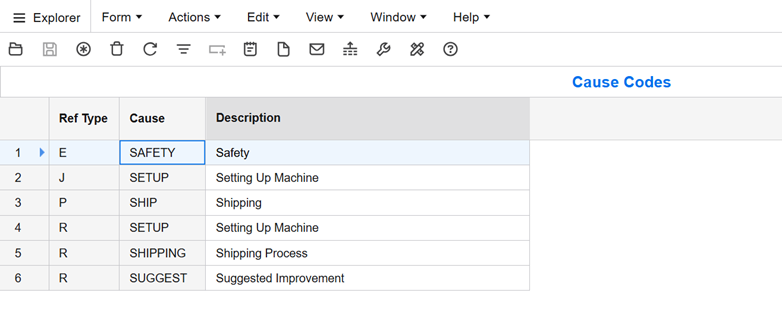
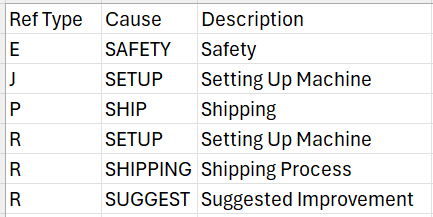
After filling out the data records that are to be uploaded, copy all of the populated rows of data, minus the header row. If the data set is very large, it is best to start with a few records to ensure the import is successful, before moving into batches of a few hundred at a time. In CSI on the corresponding form, click the “Edit” drop-down and select Paste Rows Append. Paste the data that was just copied and click okay to start the import process. This may take a while depending on the number of records. Be on the lookout for any errors that need to be corrected in the data. Once the import is complete, check to be sure the number of added records matches the amount that you pasted to begin with.
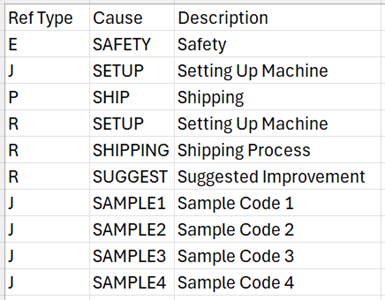
Records added in the Excel Template:
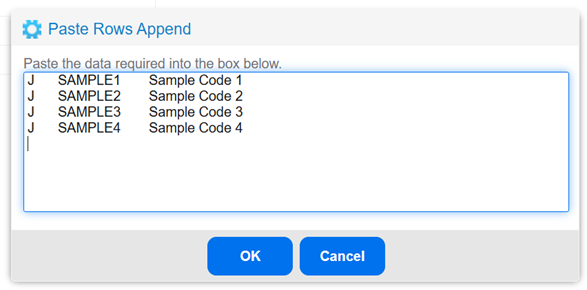
Copy Records and Paste into Paste Rows Append Popup: (Don’t include headers)
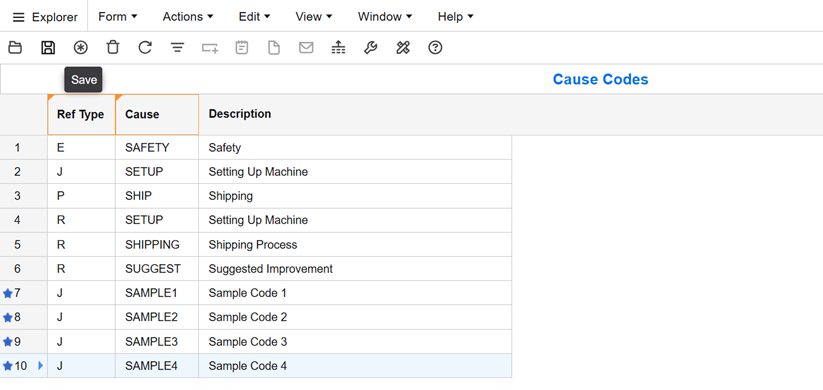
CSI Form after appending Records (before Save) notice the blue stars indicating a new record.
Depending on how often this paste rows append function is utilized for a given form, there could be changes made to the columns. This could either be due to updates through Infor, or just columns being moved around by system users. Whatever the case, it is always good practice to check any saved templates by exporting the current form and pasting the headers into the template, verifying that all of the rows are present and in the same order. Following this quick process will save a lot of headache from trying to load data with mis-aligned columns.
When used properly, the paste rows append functionality is a great tool for quickly adding records to CSI from a spreadsheet.